

AI Integration Quick Reference
AI Integration Quick Reference
Prerequisites
You need three things from the CometChat Dashboard:
You also need Node.js 18+ and npm/yarn installed.
Step 1 — Create an Astro Project
astro add react, confirm the installation of react, react-dom, and @astrojs/react.
Step 2 — Install the UI Kit
- npm
- yarn
Step 3 — Create the React Island Component
CometChat components live inside a React island (a.tsx file in src/components/). Wrap your chat UI in CometChatProvider which handles init and login automatically.
For development, use one of the pre-created test UIDs:
cometchat-uid-1 · cometchat-uid-2 · cometchat-uid-3 · cometchat-uid-4 · cometchat-uid-5
src/components/CometChatApp.tsx
CometChatProvider handles init, login, and all context setup automatically. For advanced use cases (custom login flows, individual providers), see the CometChatProvider guide.
For production, use the
authToken prop instead of authKey + uid. Generate auth tokens server-side via the CometChat REST API. Never ship auth keys in client code.Step 4 — Render the Island in an Astro Page
Create an Astro page that renders the React island withclient:only="react". This ensures the component only runs in the browser — no server-side rendering.
src/pages/index.astro
Step 5 — Run
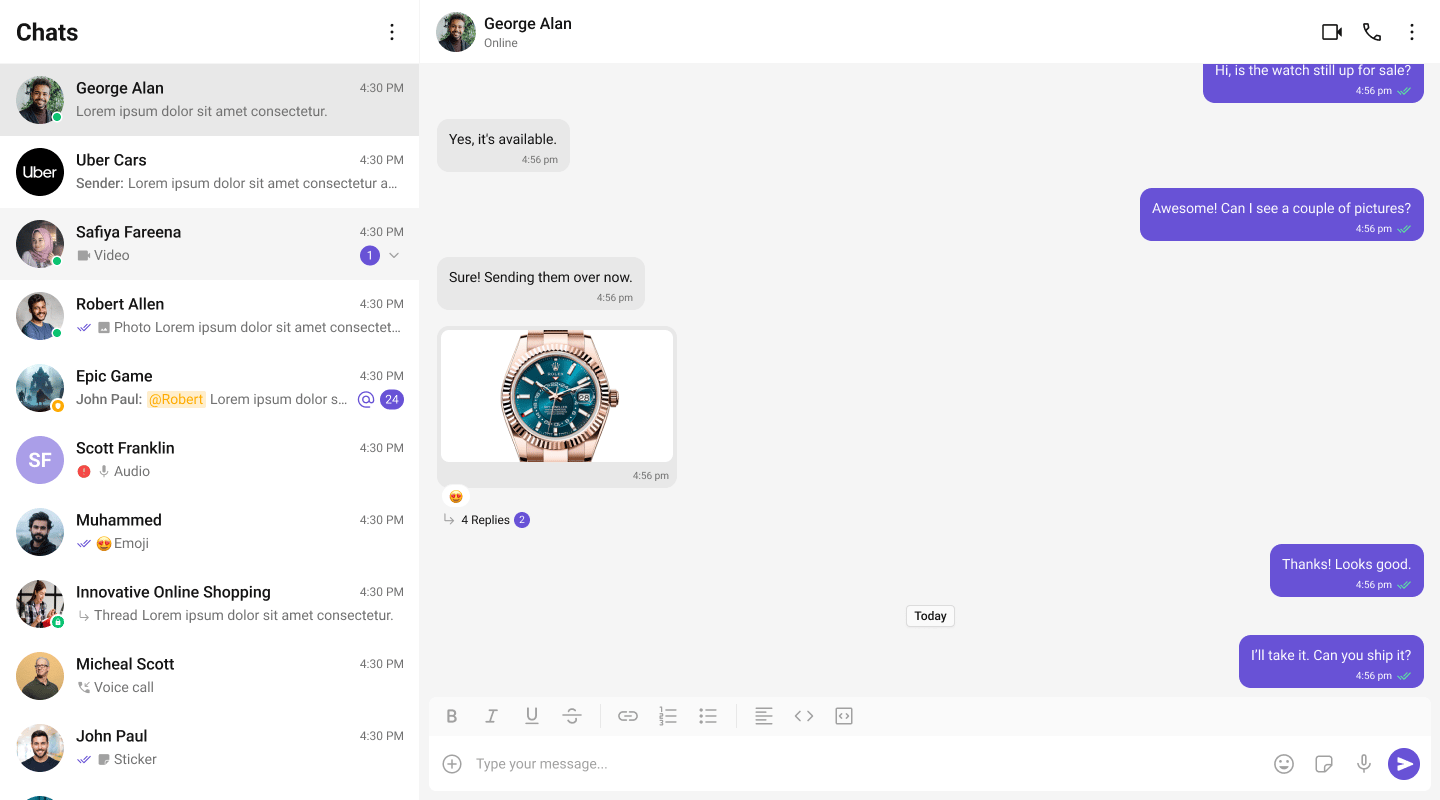
http://localhost:4321. You should see the conversation list on the left. Click a conversation to open the message panel.
Choose a Chat Experience
Conversation List + Message View
Two-panel layout — conversation list on the left, messages on the right.One-to-One / Group Chat
Single chat window — no sidebar. Good for support chat or embedded widgets.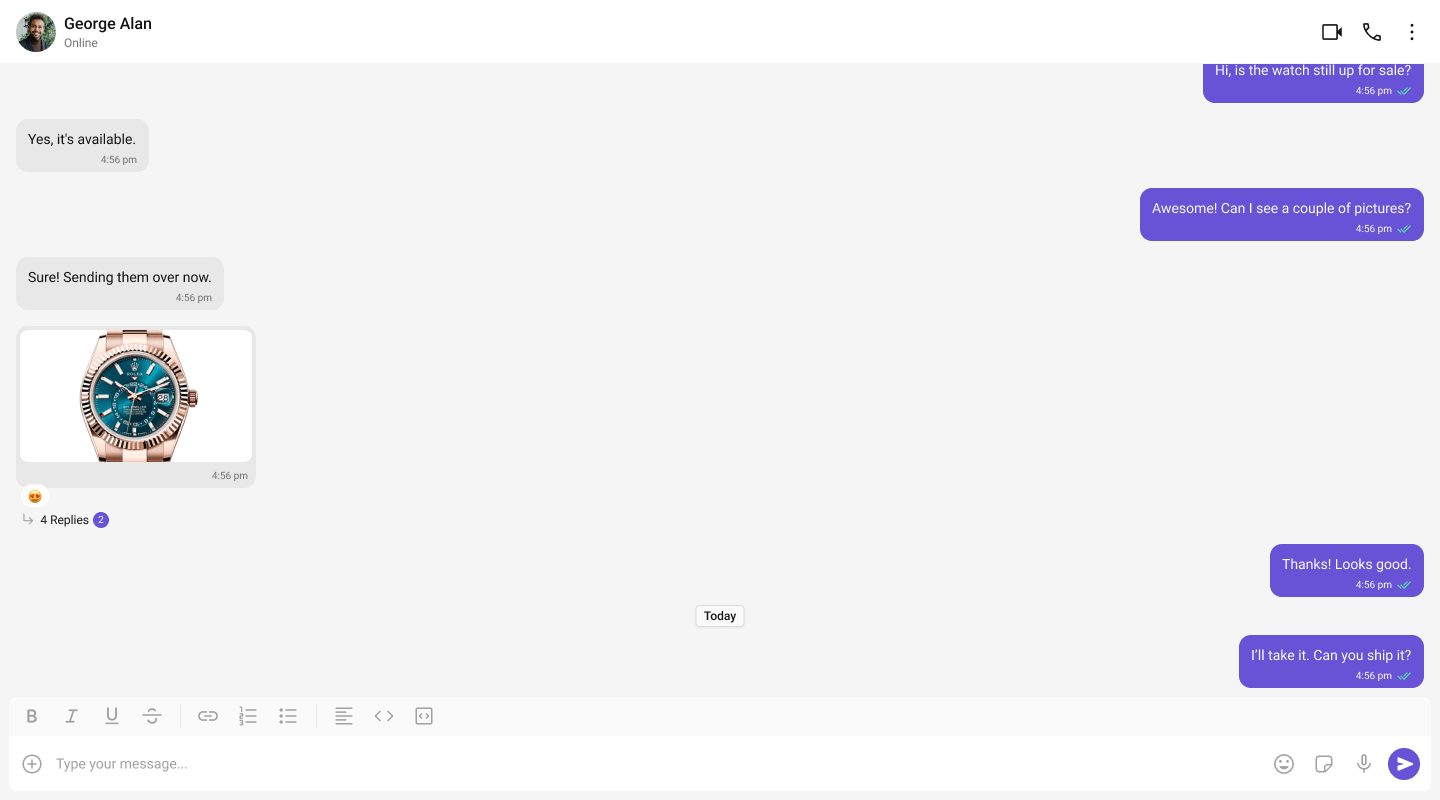
Tab-Based Chat
Tabbed navigation — Chat, Call Logs, Users, Settings in separate tabs.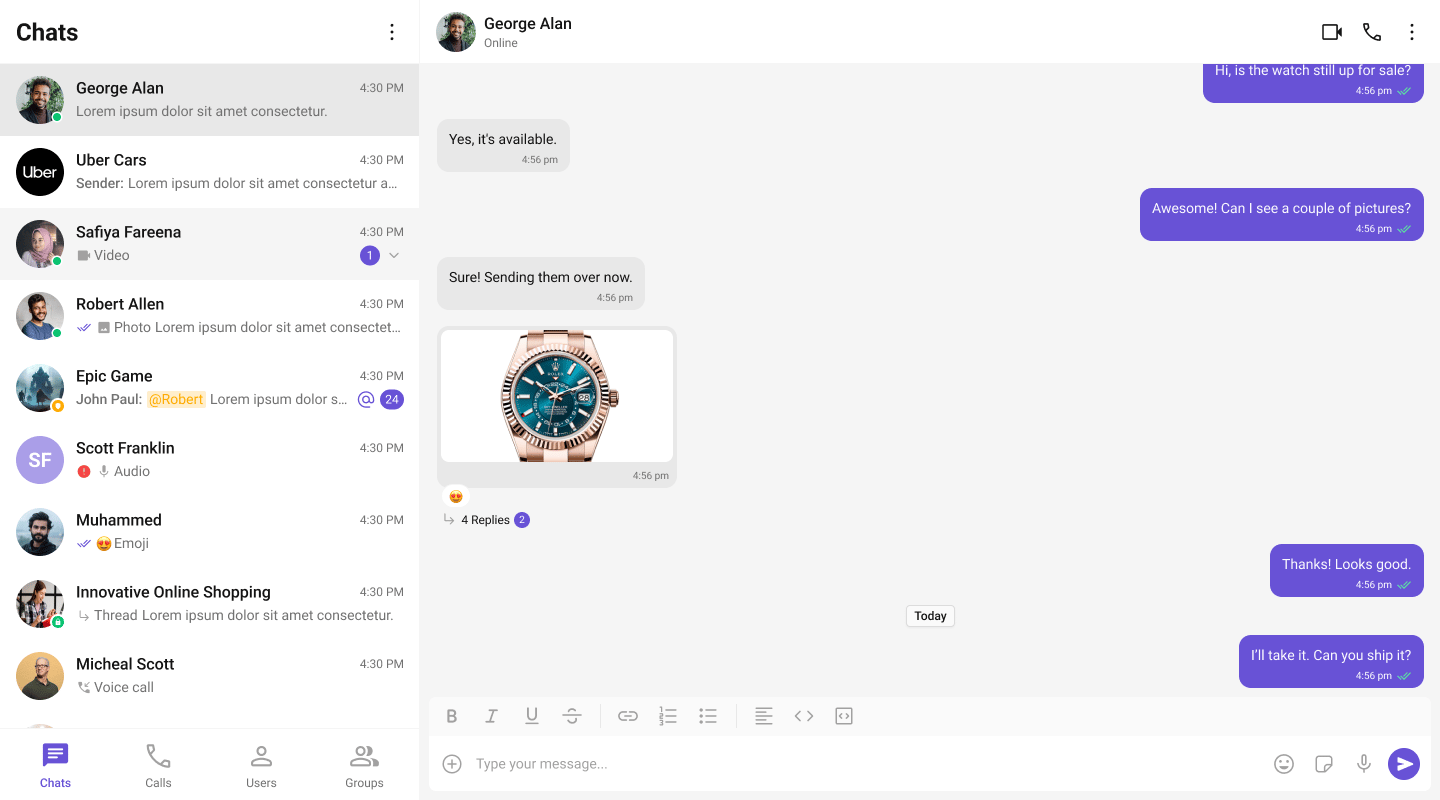
Next Steps
Components Overview
Browse all prebuilt UI components
Theming
Customize colors, fonts, and styles
Plugins
Customize message rendering
Troubleshooting
Common issues and fixes