

Overview
CometChatCallLogHistory is a Component that shows a paginated list of all the calls between the logged-in user & another user or group. This allows the user to see all the calls with a specific user/group they have initiated/received/missed.
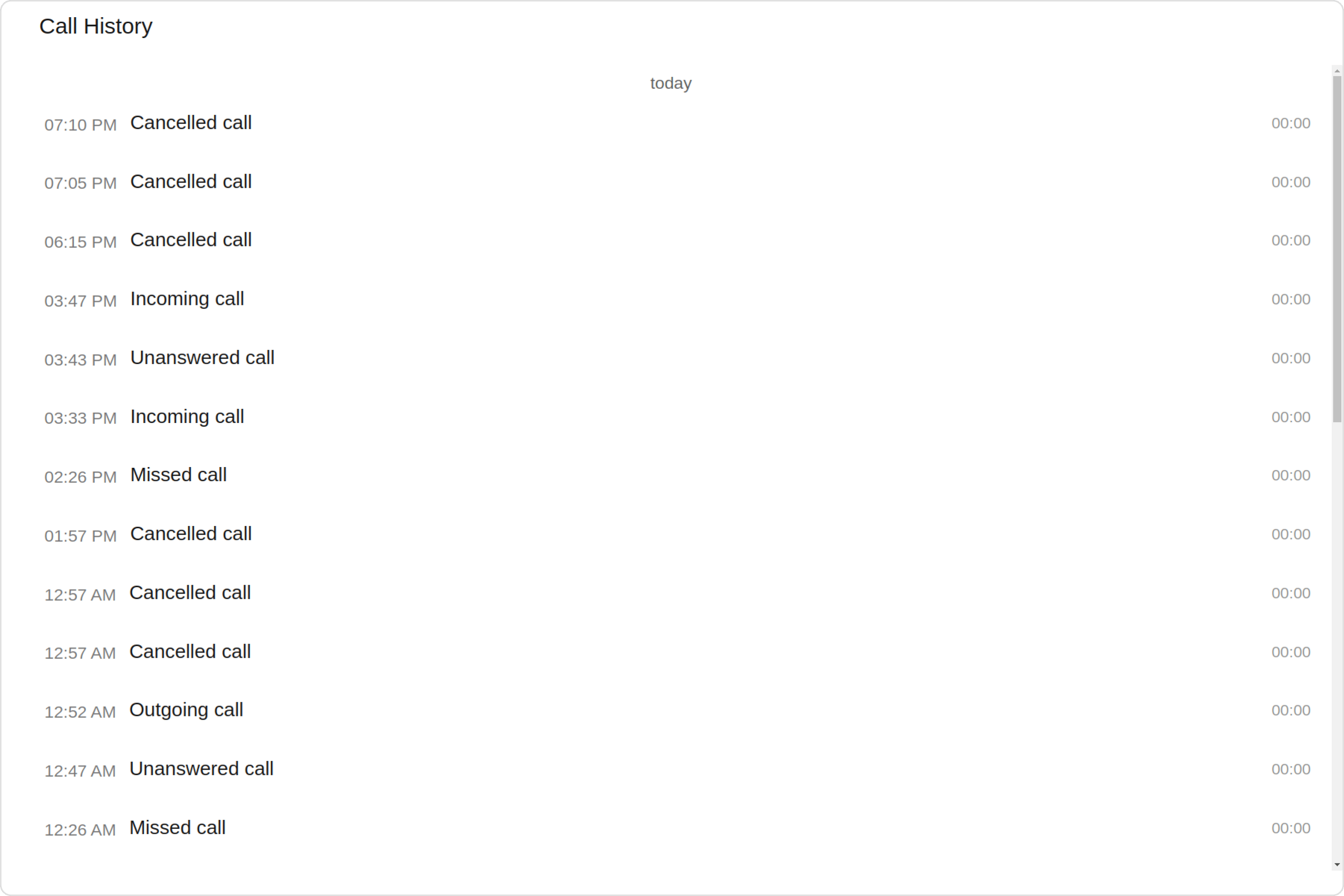
Call Log History is comprised of the following components:
Usage
Integration
- app.module.ts
- app.component.ts
- app.component.html
Actions
Actions dictate how a component functions. They are divided into two types: Predefined and User-defined. You can override either type, allowing you to tailor the behavior of the component to fit your specific needs.1. onBackClick
onBackClick is triggered when you click the Back button Icon of the Call Log History component. It does not have a default behavior. However, you can override its behavior using the following code snippet.
- app.component.ts
- app.component.html
1. onItemClick
onItemClick is triggered when you click on a ListItem of the of the Call Log History component. It does not have a default behavior. However, you can override its behavior using the following code snippet.
- app.component.ts
- app.component.html
3. onError
This action doesn’t change the behavior of the component but rather listens for any errors that occur in theCall Log History component.
- app.component.ts
- app.component.html
Filters
Filters allow you to customize the data displayed in a list within aComponent. You can filter the list based on your specific criteria, allowing for a more customized. Filters can be applied using RequestBuilders of Chat SDK.
1. CallLogRequestBuilder
The CallLogRequestBuilder enables you to filter and customize the Call Log History based on available parameters in CallLogRequestBuilder. This feature allows you to create more specific and targeted queries when fetching the call logs. The following are the parameters available in CallLogRequestBuilder
Example
In the example below, we’re filtering Call Log History to show only canceled calls and setting the limit to five.
- app.component.ts
- app.component.html
Events
Events are emitted by aComponent. By using event you can extend existing functionality. Being global events, they can be applied in Multiple Locations and are capable of being Added or Removed.
The CallLogHistory does not produce any events.
Customization
To fit your app’s design requirements, you have the ability to customize the appearance of theCallLogHistory component. We provide exposed methods that allow you to modify the experience and behavior according to your specific needs.
Style
Using Style you can customize the look and feel of the component in your app, These parameters typically control elements such as the color, size, shape, and fonts used within the component.1. CallLogHistory Style
To customize the appearance, you can assign aCallLogHistoryStyle object to the Call Log History component.
Example
In this example, we are employing the callLogHistoryStyle.
- app.component.ts
- app.component.html
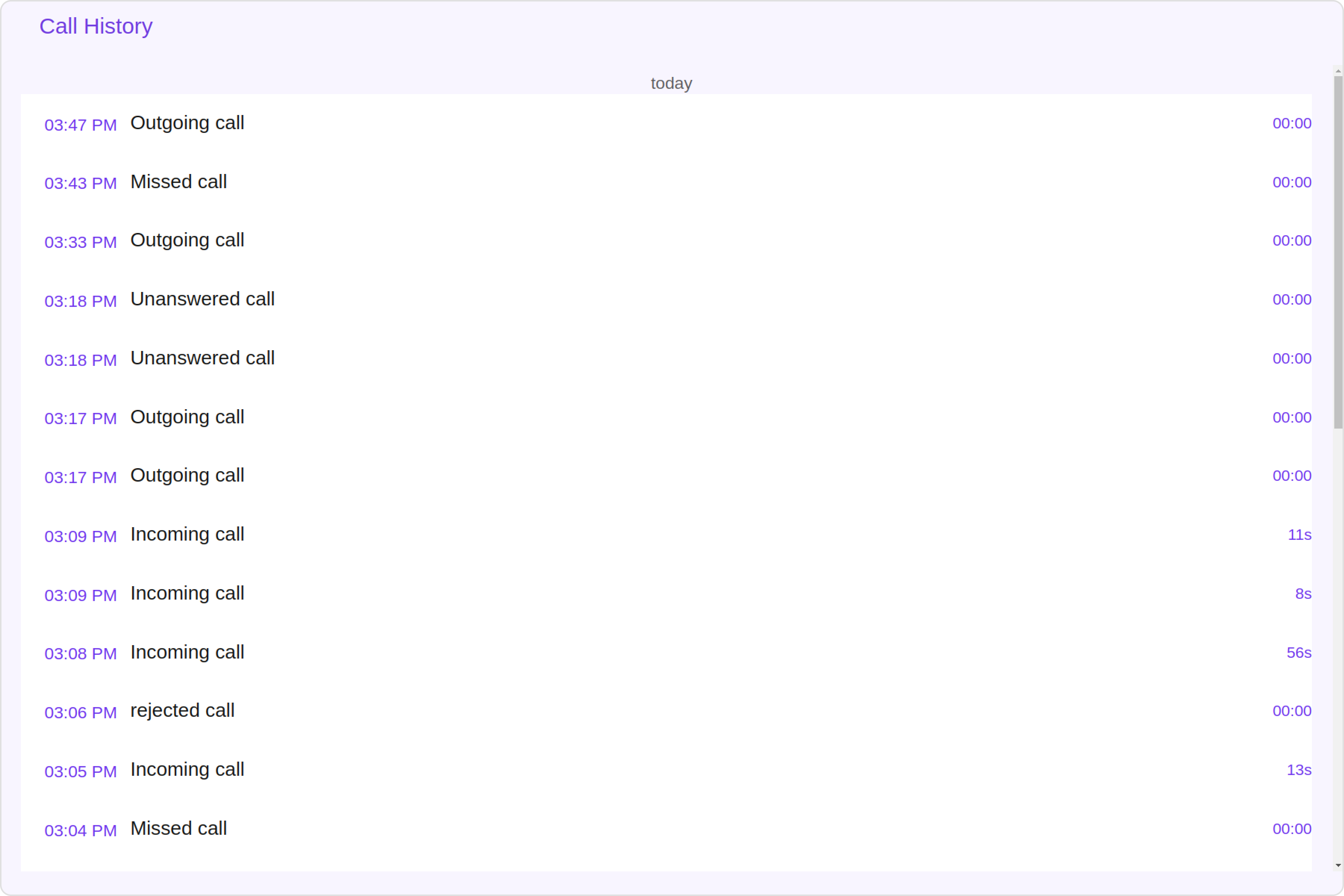
The following properties are exposed by
CallLogHistoryStyle:
2. ListItem Style
If you want to apply customized styles to theList Item component within the Call Log History Component, you can use the following code snippet. For more information, you can refer ListItem Styles.
- app.component.ts
- app.component.html
Functionality
These are a set of small functional customizations that allow you to fine-tune the overall experience of the component. With these, you can change text, set custom icons, and toggle the visibility of UI elements. Here is a code snippet demonstrating how you can customize the functionality of theCall Log History component.
- app.component.ts
- app.component.html
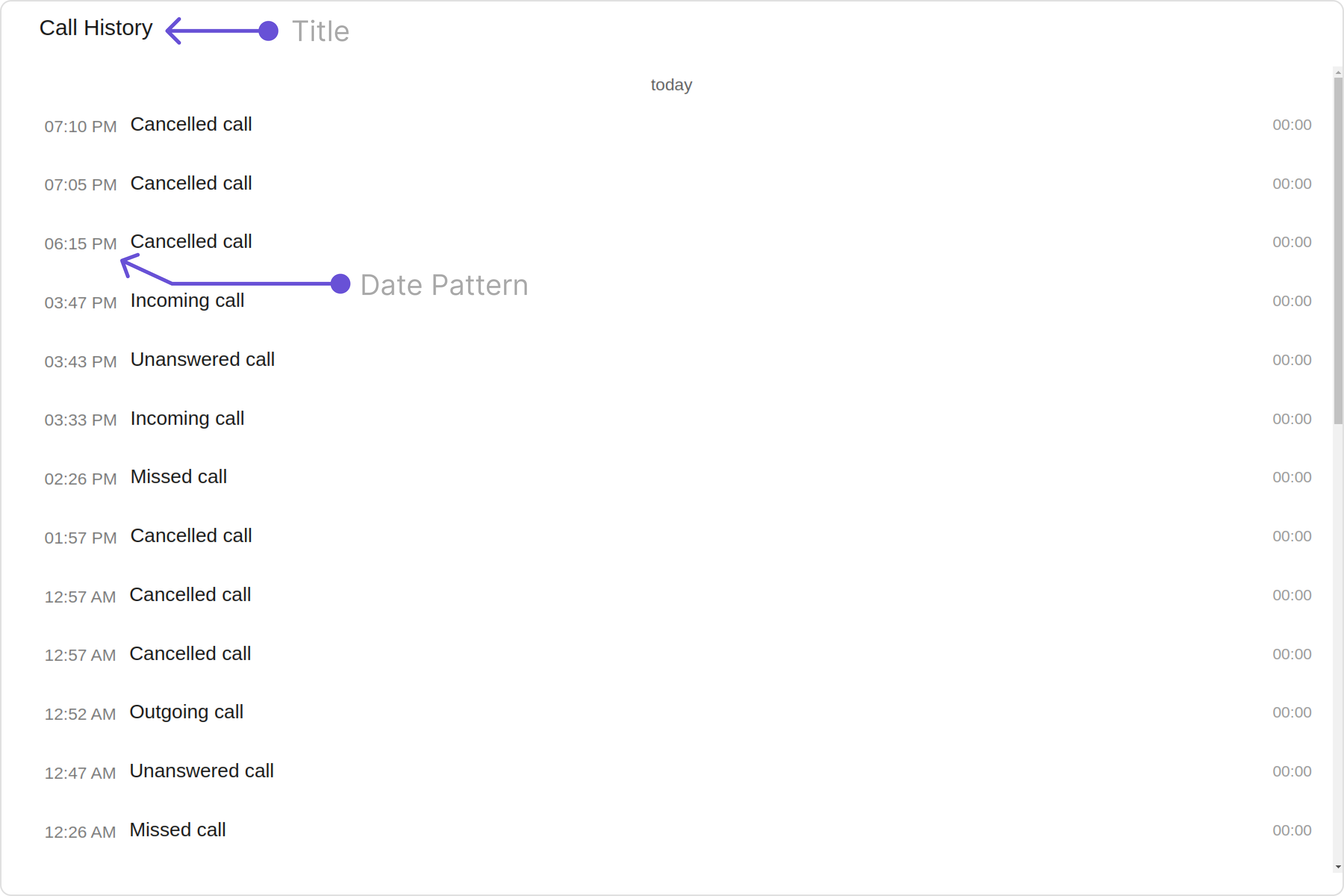
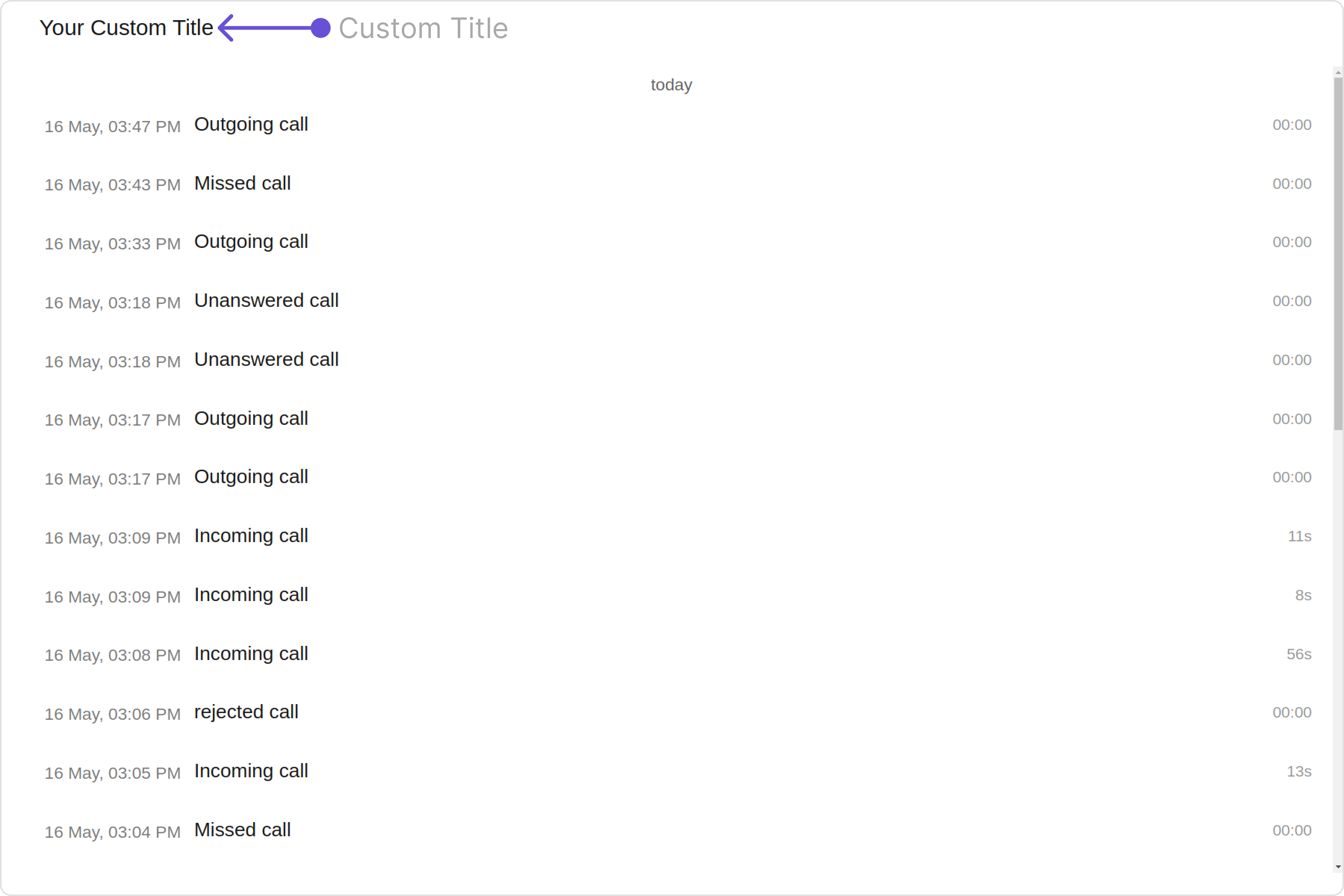
Advanced
For advanced-level customization, you can set custom views to the component. This lets you tailor each aspect of the component to fit your exact needs and application aesthetics. You can create and define your views, layouts, and UI elements and then incorporate those into the component.SubtitleView
You can customize the subtitle view for each call log History item to meet your requirements Default: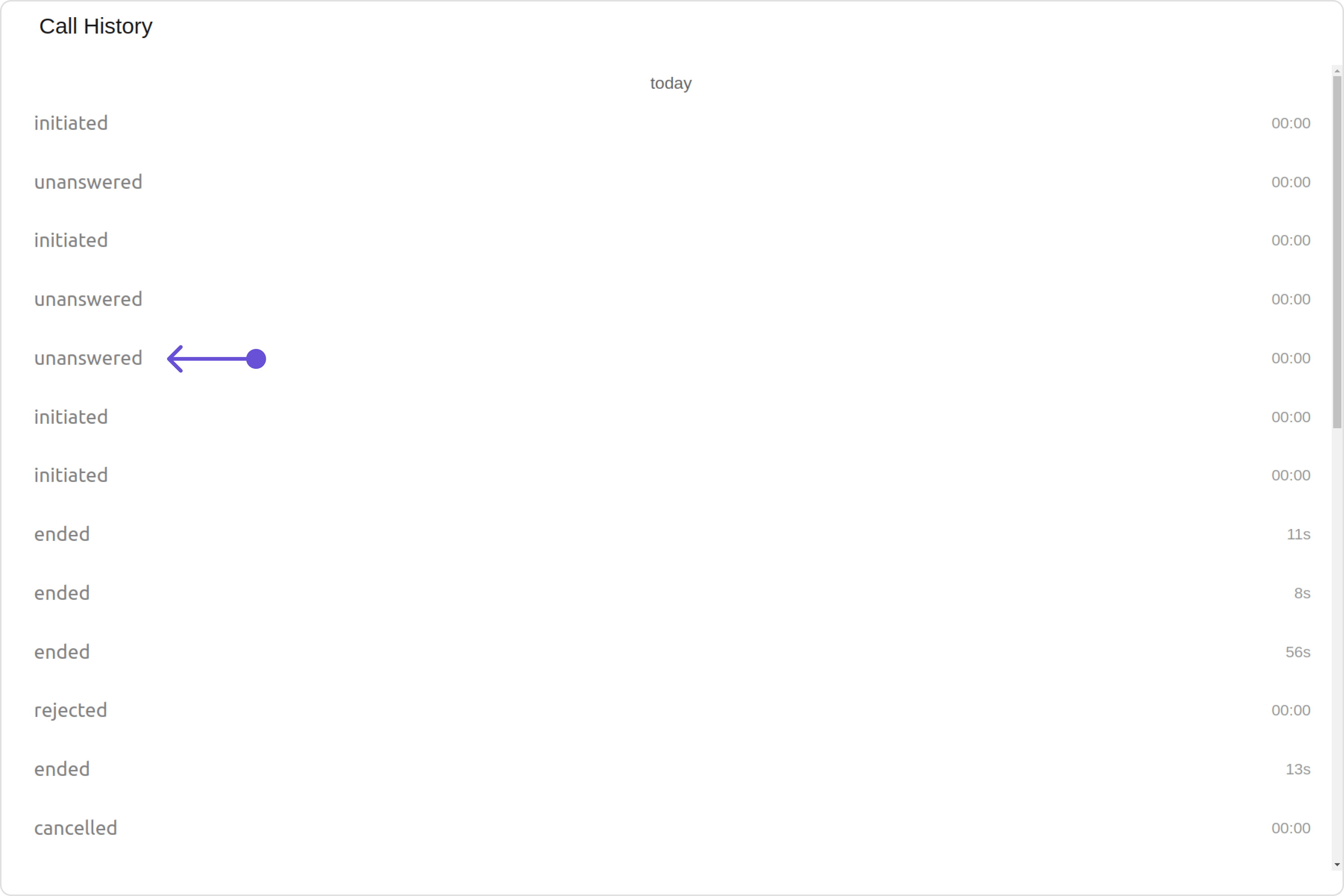
- app.component.ts
- app.component.html
LoadingStateView
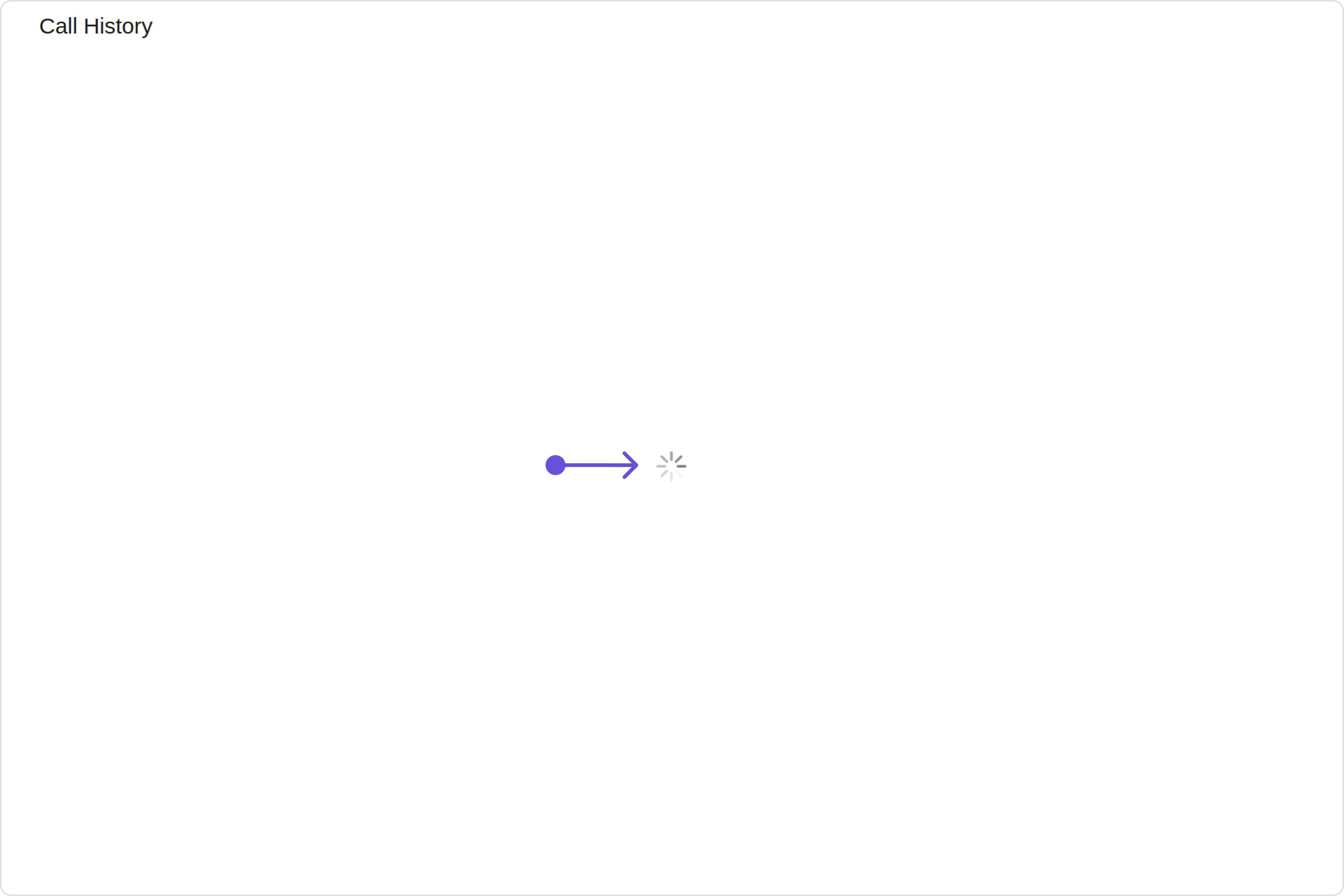
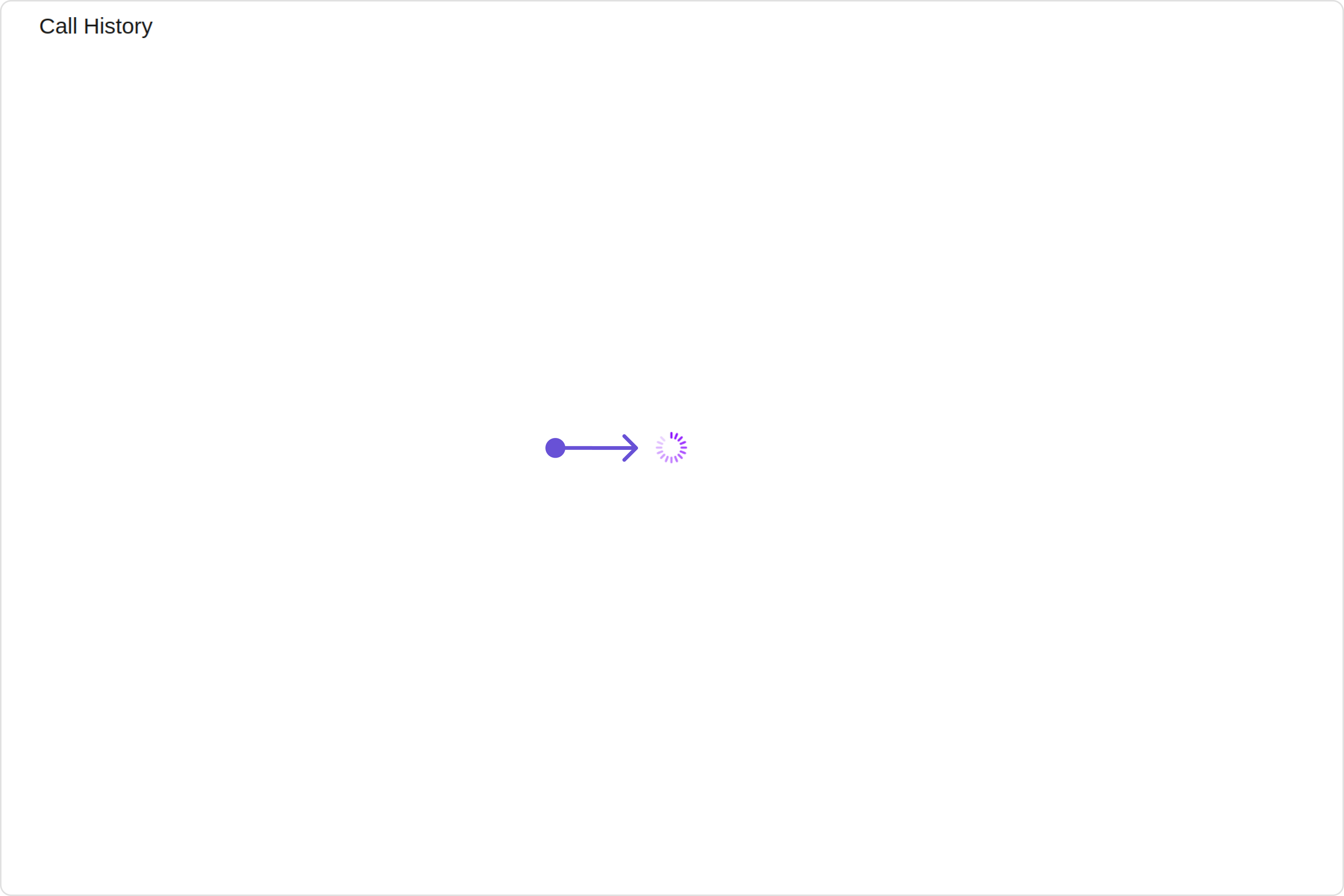
You can set a custom loader view usingloadingStateView to match the loading view of your app.
Default:
- app.component.ts
- app.component.html
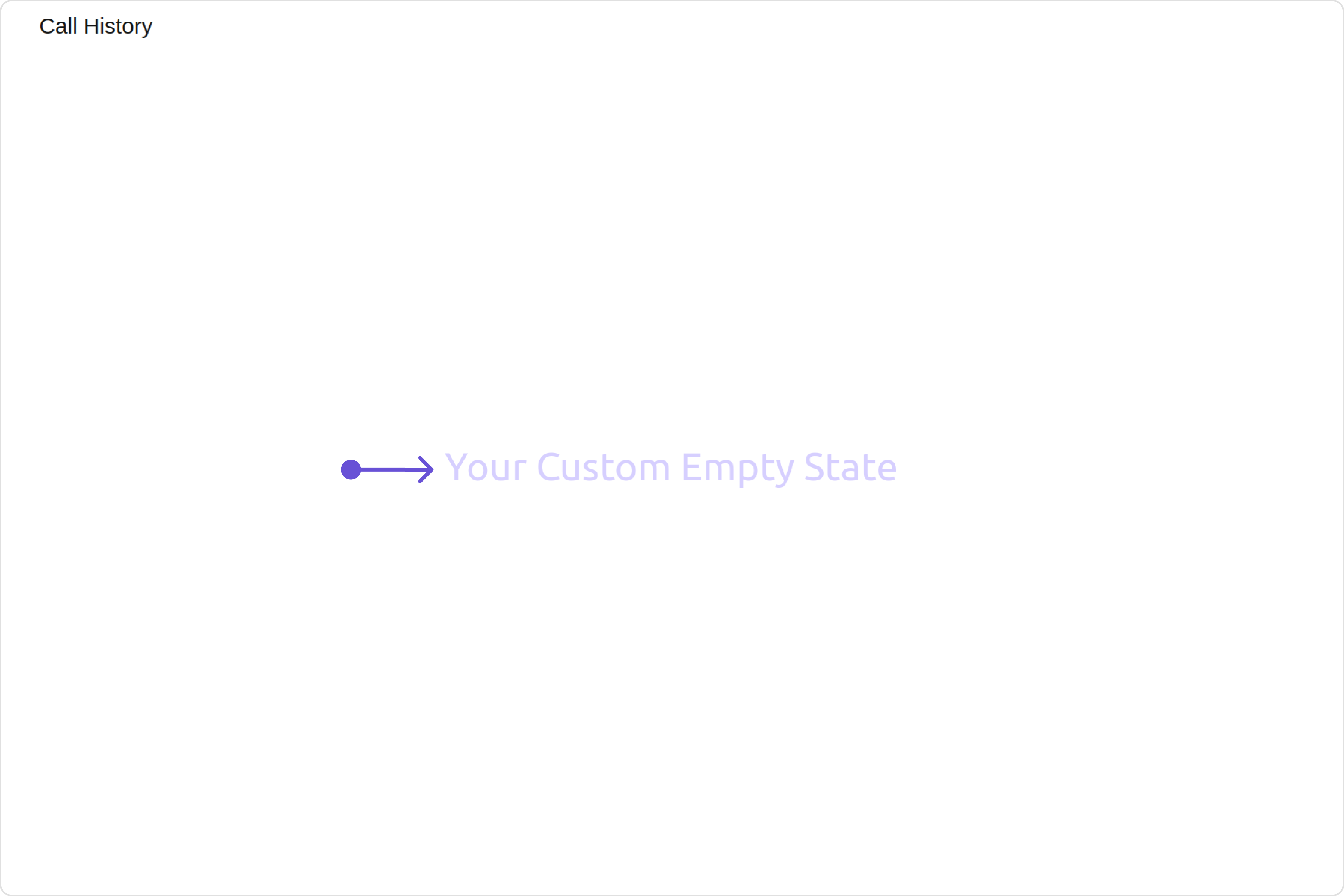
EmptyStateView
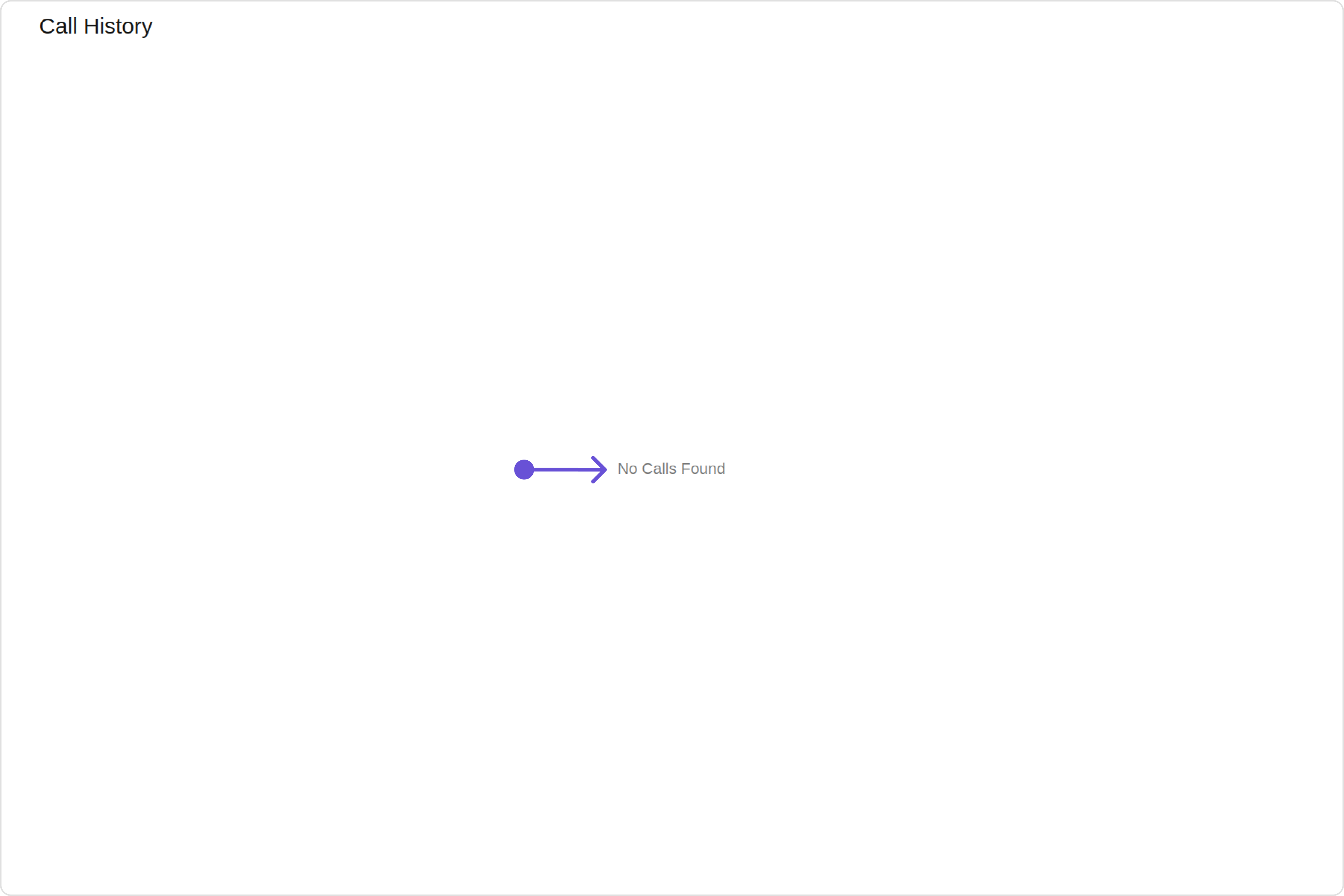
You can set a customEmptyStateView using emptyStateView to match the empty view of your app.
Default:
- app.component.ts
- app.component.html
ErrorStateView
You can set a customErrorStateView using errorStateView to match the error view of your app.
- app.component.ts
- app.component.html