> ## Documentation Index
> Fetch the complete documentation index at: https://cometchat-22654f5b-docs-platform-docs-release.mintlify.site/llms.txt
> Use this file to discover all available pages before exploring further.
# Launch Chat Window On Tap Of Push Notification
> Guide to launching the chat window from UI Kit when user taps a message push notification.
* **Requires:** CometChat SDK and UI Kit both configured
* **Implementation:** Handle notification tap in `AppDelegate` or `SceneDelegate`
* **Parse payload:** Extract sender UID or group GUID from notification payload
* **Launch:** Present `CometChatMessages` view controller with user/group
* **Related:** [Receive Message](/sdk/ios/receive-message) · [Push Notifications](/notifications/push-overview) · [UI Kit](/ui-kit/ios/overview)
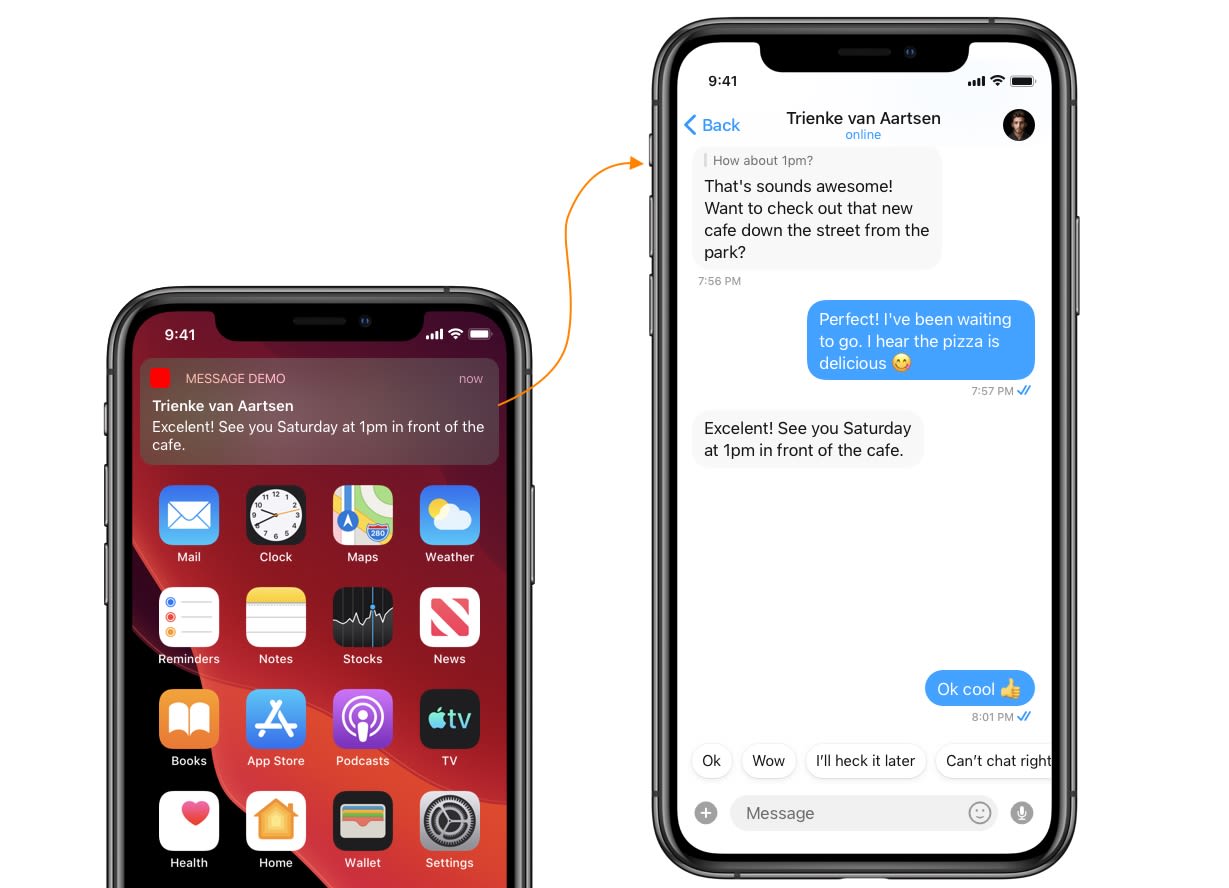 This guide helps you launch a chat window from the UI Kit library on receiving a new message notification.
CometChat SDK & UI Kit both need to be configured before launching the chat window.
***
## Step 1. Process push notification payload and grab `User` or `Group` object
To present a chat window, you need a `User` or a `Group` object. You can grab this from the push notification payload using `CometChat.processMessage()`.
```swift theme={null}
func userNotificationCenter(_ center: UNUserNotificationCenter,
didReceive response: UNNotificationResponse,
withCompletionHandler completionHandler: @escaping () -> Void) {
if let userInfo = response.notification.request.content.userInfo as? [String : Any], let messageObject = userInfo["message"] as? [String:Any] {
print("didReceive: \\(userInfo)")
if let baseMessage = CometChat.processMessage(messageObject).0 {
switch baseMessage.messageCategory {
case .message:
print("Message Object Received: \\(String(describing: (baseMessage as? TextMessage)?.stringValue()))")
case .action: break
case .call: break
case .custom: break
@unknown default: break
}
}
}
completionHandler()
}
```
## Step 2. Launch Chat Window
Launch the chat window from your base view controller using NotificationCenter.
1. Fire a notification after you receive the `User` or `Group` Object.
2. Pass the `User` or `Group` Object in the notification's user info.
### Trigger notification from App Delegate
```swift theme={null}
if let message = baseMessage as? BaseMessage {
switch baseMessage.receiverType {
case .user:
DispatchQueue.main.asyncAfter(deadline: .now() + 0.5) {
if let user = baseMessage.sender {
NotificationCenter.default.post(name: NSNotification.Name(rawValue: "didReceivedMessageFromUser"), object: nil, userInfo: ["user":user])
}
}
case .group:
DispatchQueue.main.asyncAfter(deadline: .now() + 0.5) {
if let group = baseMessage.receiver as? Group {
NotificationCenter.default.post(name: NSNotification.Name(rawValue: "didReceivedMessageFromGroup"), object: nil, userInfo: ["group":group])
}
}
@unknown default: break
}
}
```
3. Observe the notification in your base view controller.
1) Base view controller is a controller that launches immediately after the app delegate.
2) Base view controller should be present to observe the notification when notification fires.
3) If the view controller is not present in the memory when a new notification receives, then it won't launch Chat Window.
### Observe notification in Base View Controller
```swift theme={null}
class BaseViewController : UIViewController {
override func viewDidLoad() {
NotificationCenter.default.addObserver(self, selector:#selector(self.didReceivedMessageFromGroup(_:)), name: NSNotification.Name(rawValue: "didReceivedMessageFromGroup"), object: nil)
NotificationCenter.default.addObserver(self, selector:#selector(self.didReceivedMessageFromUser(_:)), name: NSNotification.Name(rawValue: "didReceivedMessageFromUser"), object: nil)
}
}
```
### Add selector method & Launch Chat Window
```swift theme={null}
@objc func didReceivedMessageFromGroup(_ notification: NSNotification) {
if let group = notification.userInfo?["group"] as? Group {
DispatchQueue.main.async {
let messageList = CometChatMessageList()
let navigationController = UINavigationController(rootViewController:messageList)
messageList.set(conversationWith: group, type: .group)
self.present(navigationController, animated:true, completion:nil)
}
}
}
@objc func didReceivedMessageFromUser(_ notification: NSNotification) {
print("didReceivedMessageFromUser")
if let user = notification.userInfo?["user"] as? User {
DispatchQueue.main.async {
let messageList = CometChatMessageList()
let navigationController = UINavigationController(rootViewController:messageList)
messageList.set(conversationWith: user, type: .user)
self.present(navigationController, animated:true, completion:nil)
}
}
}
```
***
## Next Steps
Handle incoming messages in real time
Set up push notifications for your iOS app
Open call screen from push notification tap
Pre-built UI components for iOS
This guide helps you launch a chat window from the UI Kit library on receiving a new message notification.
CometChat SDK & UI Kit both need to be configured before launching the chat window.
***
## Step 1. Process push notification payload and grab `User` or `Group` object
To present a chat window, you need a `User` or a `Group` object. You can grab this from the push notification payload using `CometChat.processMessage()`.
```swift theme={null}
func userNotificationCenter(_ center: UNUserNotificationCenter,
didReceive response: UNNotificationResponse,
withCompletionHandler completionHandler: @escaping () -> Void) {
if let userInfo = response.notification.request.content.userInfo as? [String : Any], let messageObject = userInfo["message"] as? [String:Any] {
print("didReceive: \\(userInfo)")
if let baseMessage = CometChat.processMessage(messageObject).0 {
switch baseMessage.messageCategory {
case .message:
print("Message Object Received: \\(String(describing: (baseMessage as? TextMessage)?.stringValue()))")
case .action: break
case .call: break
case .custom: break
@unknown default: break
}
}
}
completionHandler()
}
```
## Step 2. Launch Chat Window
Launch the chat window from your base view controller using NotificationCenter.
1. Fire a notification after you receive the `User` or `Group` Object.
2. Pass the `User` or `Group` Object in the notification's user info.
### Trigger notification from App Delegate
```swift theme={null}
if let message = baseMessage as? BaseMessage {
switch baseMessage.receiverType {
case .user:
DispatchQueue.main.asyncAfter(deadline: .now() + 0.5) {
if let user = baseMessage.sender {
NotificationCenter.default.post(name: NSNotification.Name(rawValue: "didReceivedMessageFromUser"), object: nil, userInfo: ["user":user])
}
}
case .group:
DispatchQueue.main.asyncAfter(deadline: .now() + 0.5) {
if let group = baseMessage.receiver as? Group {
NotificationCenter.default.post(name: NSNotification.Name(rawValue: "didReceivedMessageFromGroup"), object: nil, userInfo: ["group":group])
}
}
@unknown default: break
}
}
```
3. Observe the notification in your base view controller.
1) Base view controller is a controller that launches immediately after the app delegate.
2) Base view controller should be present to observe the notification when notification fires.
3) If the view controller is not present in the memory when a new notification receives, then it won't launch Chat Window.
### Observe notification in Base View Controller
```swift theme={null}
class BaseViewController : UIViewController {
override func viewDidLoad() {
NotificationCenter.default.addObserver(self, selector:#selector(self.didReceivedMessageFromGroup(_:)), name: NSNotification.Name(rawValue: "didReceivedMessageFromGroup"), object: nil)
NotificationCenter.default.addObserver(self, selector:#selector(self.didReceivedMessageFromUser(_:)), name: NSNotification.Name(rawValue: "didReceivedMessageFromUser"), object: nil)
}
}
```
### Add selector method & Launch Chat Window
```swift theme={null}
@objc func didReceivedMessageFromGroup(_ notification: NSNotification) {
if let group = notification.userInfo?["group"] as? Group {
DispatchQueue.main.async {
let messageList = CometChatMessageList()
let navigationController = UINavigationController(rootViewController:messageList)
messageList.set(conversationWith: group, type: .group)
self.present(navigationController, animated:true, completion:nil)
}
}
}
@objc func didReceivedMessageFromUser(_ notification: NSNotification) {
print("didReceivedMessageFromUser")
if let user = notification.userInfo?["user"] as? User {
DispatchQueue.main.async {
let messageList = CometChatMessageList()
let navigationController = UINavigationController(rootViewController:messageList)
messageList.set(conversationWith: user, type: .user)
self.present(navigationController, animated:true, completion:nil)
}
}
}
```
***
## Next Steps
Handle incoming messages in real time
Set up push notifications for your iOS app
Open call screen from push notification tap
Pre-built UI components for iOS