

Collaborative document
Co-edit documents in real-time with other users. Perfect for meeting notes, collaborative writing, and shared planning. When to use: Meeting notes, collaborative drafting, shared to-do lists, or any scenario where multiple people need to edit text together.Out-of-the-box in: UI Kit Builder ✅ | Widget Builder ✅ | UI Kits ✅ | SDK ✅
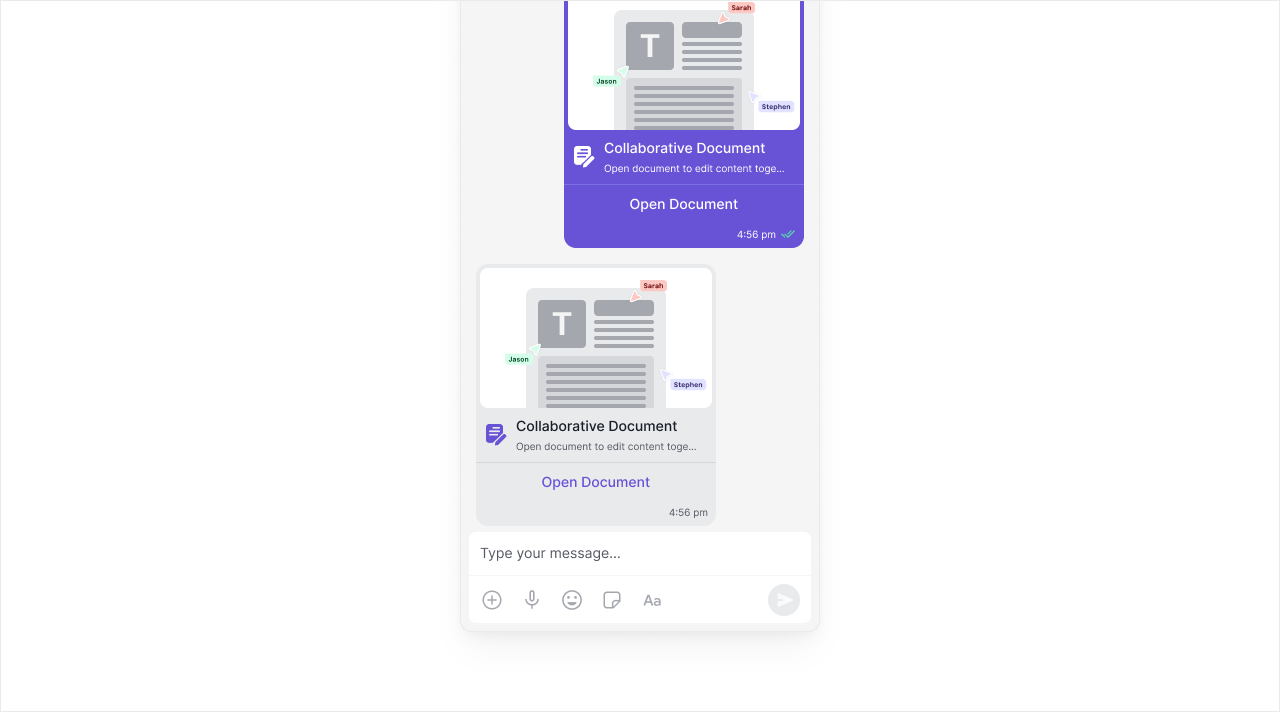
Extension settings
1
Open your CometChat app
Login to CometChat and select your app.
2
Enable Collaborative Document
Go to Chat & Messaging —> Features, under Extentions and enable Collaborative Document.
How does it work?
Using the Collaborative Document extension is pretty straight-forward. As an initiator, you only have to create a session. The extension will handle the following for you:- Create a collaboration link: Generate a document link for the session.
- Invite collaborators: Send the link as an invitation to receivers.
Receiving the details
As an initiator
You will receive thedocument_url of the session in the success callback of the callExtension method.
As a collaborator
The receiver (can be a user or group) will get a message with the following properties:- category:
custom - type:
extension_document
Document metadata
Document Features
The Collaborative document has the following editing features:- Bold, Italic, Underline, Strikethrough
- Numbered list, Bulleted list
- Indent and Outdent
Implementation
| Technology | Support | Docs |
|---|---|---|
| UI Kit Builder | ✅ | |
| Widget Builder | ✅ | |
| UI Kits | ✅ |      |
| SDK | ✅ |
Collaborative whiteboard
Draw, sketch, and brainstorm together in real-time. Perfect for visual collaboration, design discussions, and interactive presentations. When to use: Design reviews, brainstorming sessions, tutoring, technical diagrams, or any visual collaboration.Out-of-the-box in: UI Kit Builder ✅ | Widget Builder ✅ | UI Kits ✅ | SDK ✅
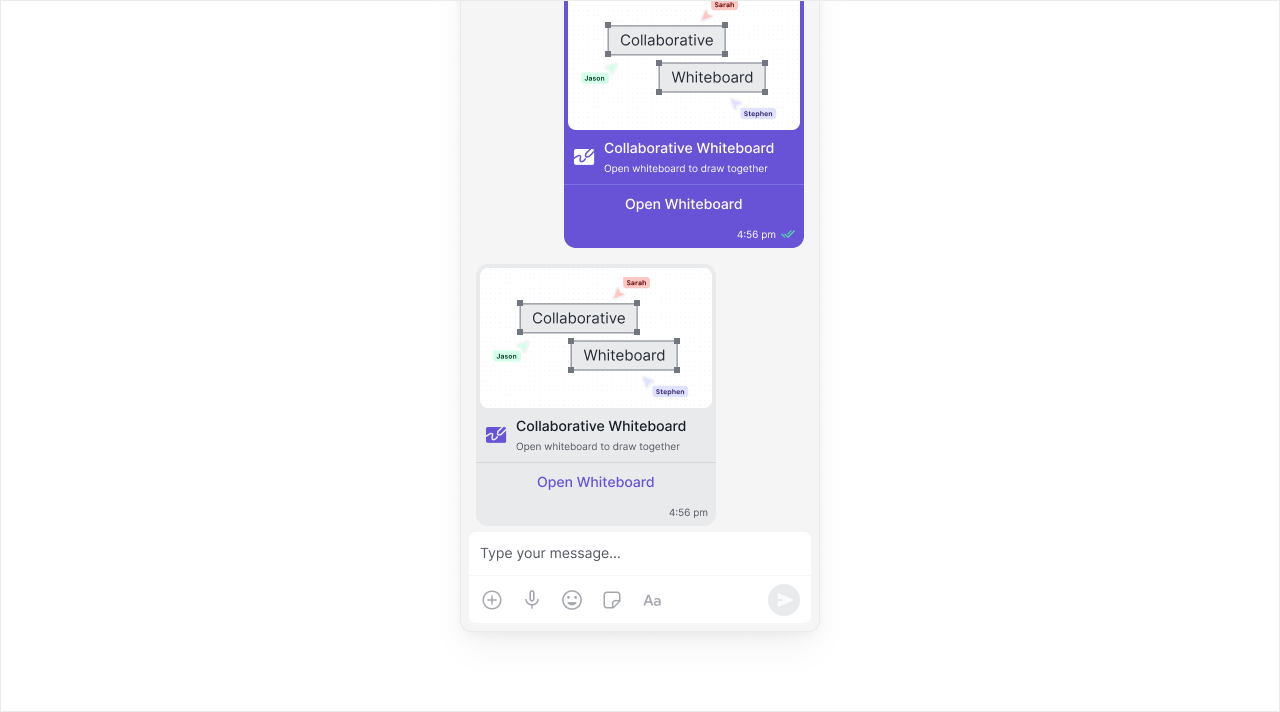
Extension settings
1
Open your CometChat app
Login to CometChat and select your app.
2
Enable Collaborative Whiteboard
Go to Chat & Messaging —> Features, under Extentions and enable Collaborative Whiteboard.
How does it work?
Using the Collaborative Whiteboard extension is pretty straight-forward. As an initiator, you only have to create a session. The extension will handle the following for you:- Create a collaboration link: Generate a whiteboard link for the session.
- Invite collaborators: Send the link as an invitation to receivers.
Receiving the details
As an initiator
You will receive theboard_url of the whiteboard session in the success callback of the callExtension method.
As a collaborator
The receiver (a user or group) will get a message with the following properties:- category:
custom - type:
extension_whiteboard
Whiteboard metadata
Whiteboard Features
Our whiteboard implementation provides the following features:- Edit: Clear board, Undo, Redo
- Tools: Mouse pointer, Select an area, Pen, Line, Rectangle, Circle, Text, Eraser
- Tool properties: Thickness, Color
- Upload image to whiteboard
- Export whiteboard as image
Implementation
| Technology | Support | Docs |
|---|---|---|
| UI Kit Builder | ✅ | |
| Widget Builder | ✅ | |
| UI Kits | ✅ | |
| SDK | ✅ |
Limitations
Keep these constraints in mind when using collaboration features:Collaboration sessions remain active until explicitly closed. Consider implementing session cleanup for inactive sessions.